

- 2026-06-02
- by LethaldiranMX
- Trends
- 0 Comments
LethaldiranMX Insight
Docswrite addresses a classic editorial bottleneck by bridging the gap between Google Docs collaborative writing environments and the WordPress block editor. For content-heavy operations and multi-author editorial teams, this integration eliminates the tedious, error-prone process of manual copy-pasting, image re-uploading, and formatting cleanup. By handling complex elements like Advanced Custom Fields and major SEO plugin metadata during the export process, it transforms WordPress from a manual publishing destination into an automated endpoint for structured content pipelines.
Best Fit & Operational Role: This plugin is an ideal fit for high-volume editorial teams, digital publishers, and agencies running programmatic SEO campaigns who use Google Docs as their primary drafting and collaboration suite. Within the WordPress stack, it acts as a secure API bridge, offloading the heavy lifting of document parsing and image optimization to the Docswrite SaaS platform. It solves the operational overhead of content migration, ensuring that formatting, metadata, and custom fields are populated consistently without manual developer or editor intervention.
Potential Limitations & Pitfalls: Because this plugin functions as a connector to an external SaaS platform, its operational viability is entirely dependent on the Docswrite service availability, API uptime, and subscription terms beyond the initial five free exports. Organizations with strict data sovereignty requirements must evaluate the security implications of routing draft content through a third-party intermediary. Additionally, while the plugin simplifies the publishing pipeline, troubleshooting formatting discrepancies or sync failures requires debugging across both the WordPress application layer and the external Docswrite dashboard.

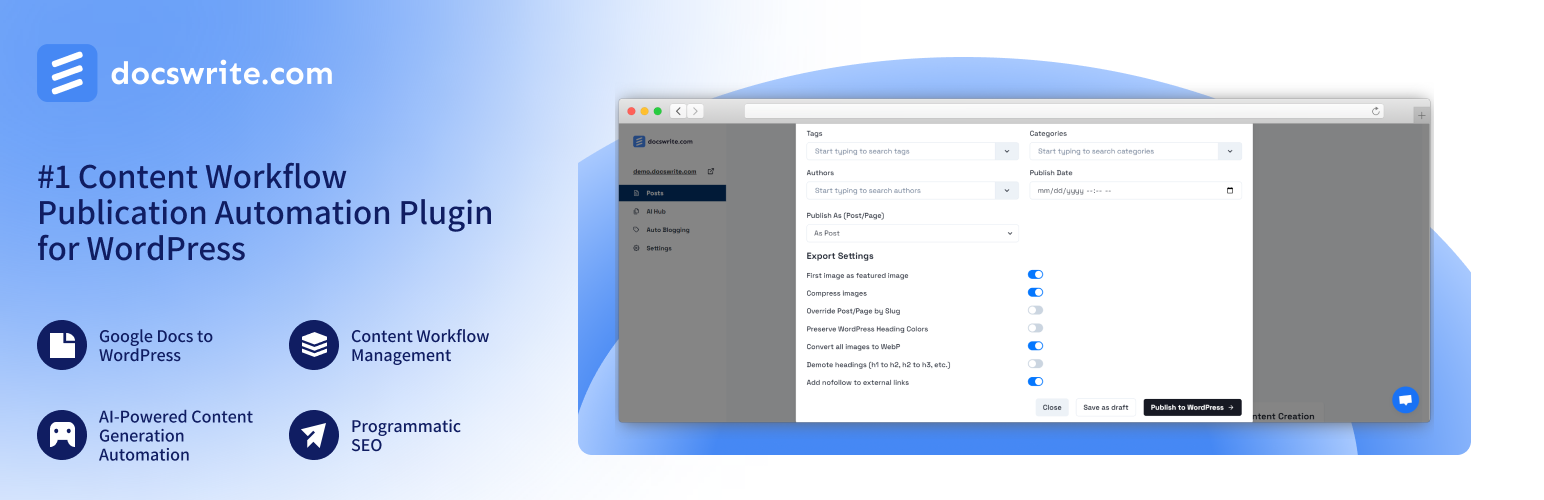
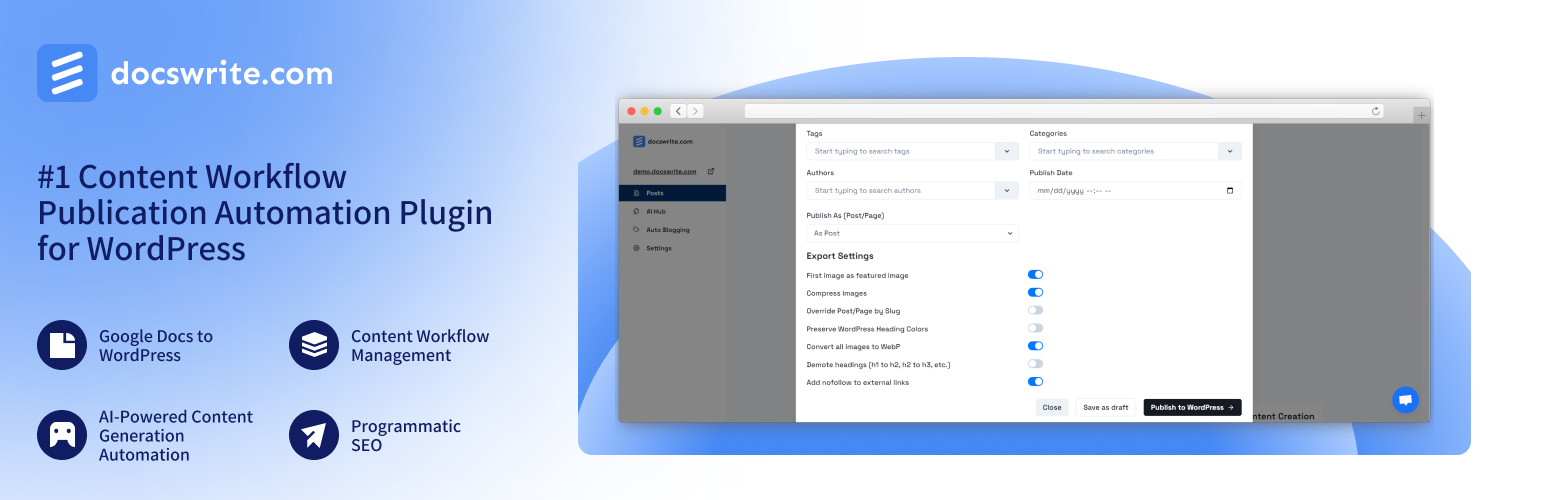
Effortlessly publish Google Docs to WordPress, preserving formatting and structure for a streamlined content workflow
Docswrite is a powerful tool for editorial and content teams. It automates and optimizes content publication, making it easier for teams to manage and publish content consistently. Whether you’re editing blog posts, articles, or any other type of content, Docswrite integrates seamlessly with your WordPress site to enhance your content management workflow.
This plugin allows you to connect your WordPress website to Docswrite, a platform offering seamless content transformation from Google Docs to WordPress. With this integration, website owners can save hundreds of hours per month by simplifying the content distribution process.
Join hundreds of content teams that use Docswrite! Interested to know the difference between us and our competitors? Check out the full details and insights from each challenge on our blog:
🏆 Docswrite vs. Competitors: In-Depth Comparisons
Discover how Docswrite stacks up against other solutions:
Want to see these comparisons in action? Check out our YouTube channel for visual breakdowns:
🌟 Features
- Bulk Publish: Import multiple documents at once for efficient content management.
- Content Workflow Management: Create and manage content workflows with collaborative features, allowing multiple users to work together efficiently.
- Programmatic SEO: Create and optimize a large number of unique, high-quality web pages at scale.
- AI-Powered Content Generation Automation: Generate and publish automatically high-quality, SEO-optimized content, ensuring your posts are optimized for search engines without extra effort.
- Enhanced Security: Protect your content with advanced security features and user management controls by securely keeping your website ID.
- Free Trial: Get 5 free exports to try out all features without any commitment.
- ACF Support: Update ACF fields for posts created by Docswrite.
- Rankmath and Yoast SEO Support: Update Rankmath and Yoast SEO fields for posts created by Docswrite.
- Newspack SEO Support: Update Newspack SEO fields for posts created by Docswrite.
📦 Installation
-
Activate the plugin from the Plugins menu in your WordPress admin panel.
-
Have an account at Docswrite.
🛠️ How Does it Work?
-
After Docswrite is activated, click on “Connect” and you will be redirected to Docswrite.
-
If you have an account with Docswrite, your website will be automatically registered. If not, you will be redirected to the signup page.
-
Once connected, go to the Docswrite dashboard and start your publishing journey.
-
Happy publishing!
💬 Support
For support or inquiries, please visit Docswrite Support or contact us at [email protected]
How it works
- After installation and activation of the plugin, this is the screen you see. The Website ID represents a secret that will be used to connect with Docswrite
- After clicking on ‘Connect’ you will be redirected to Docswrite – you need to be logged in to Docswrite
- If you don’t have an account with Docswrite, you will be redirected to the sign up page
- Your site will be added to Docswrite dashboard
- You are successfully connected
- Now, you can publish content using Docswrite ✨
Editorial note: This overview combines WordPress.org official plugin metadata with an AI-assisted LethaldiranMX editorial review. Plugin data should be verified on the official WordPress.org listing before installation.